MCP Client: What It Is and the 9 Best Options in 2026
- Problem: AI assistants like Claude Desktop and Cursor are limited to their built-in tools without MCP server connections.
- Solution: The Model Context Protocol (MCP) provides a standardized client-server architecture so any MCP client can connect to any MCP server for extended capabilities.
- Result: Whether you choose Claude Desktop, Cursor, Cline, or any of the 9 clients below, connecting a QVeris MCP server gives your AI assistant instant access to 10,000+ tools across search, maps, docs, finance, and more.
What Is an MCP Client?
An MCP client is a component within an MCP host application (such as Claude Desktop or Cursor) that manages the connection to MCP servers. The host exposes one or more MCP clients, each communicating with servers that provide tools and capabilities.
This client-server architecture enables any compatible host to access any MCP-capable server through a standardized interface — similar to how a USB controller inside your laptop connects to external devices.
Anthropic introduced the Model Context Protocol in November 2024, describing it as a "USB-C for AI" — a universal standard that replaces the need for custom integrations between AI assistants and tools. The MCP specification defines how hosts, clients, and servers communicate so that tools built for one MCP-compatible application work across all of them.
The MCP client is the critical interface layer inside your AI application. When you ask Claude to look up a product price or generate a map route, the MCP client inside Claude Desktop manages the connection to the MCP server that provides that tool. It handles protocol negotiation, message framing, and data exchange — keeping the AI assistant focused on reasoning while the client manages connectivity.
For developers building AI-powered workflows, an MCP client is the entry point. You don't need to choose between Claude Desktop for its strong reasoning or Cursor for its IDE integration — any MCP client can connect to the same MCP servers, giving you the same extended capabilities regardless of which AI application you use.
MCP Client vs MCP Server: The Architecture
Throughout this guide we use "MCP client" in its common industry sense — meaning the AI application a user interacts with (Claude Desktop, Cursor, etc.). Technically, those applications are MCP hosts that contain MCP client components. We follow the colloquial usage because that's how developers search and talk about these tools in practice.
The Model Context Protocol follows a three-layer architecture: the Host application, the Client component, and the Server provider. Understanding this separation is key to grasping how MCP enables interoperability between AI tools and capability sources.
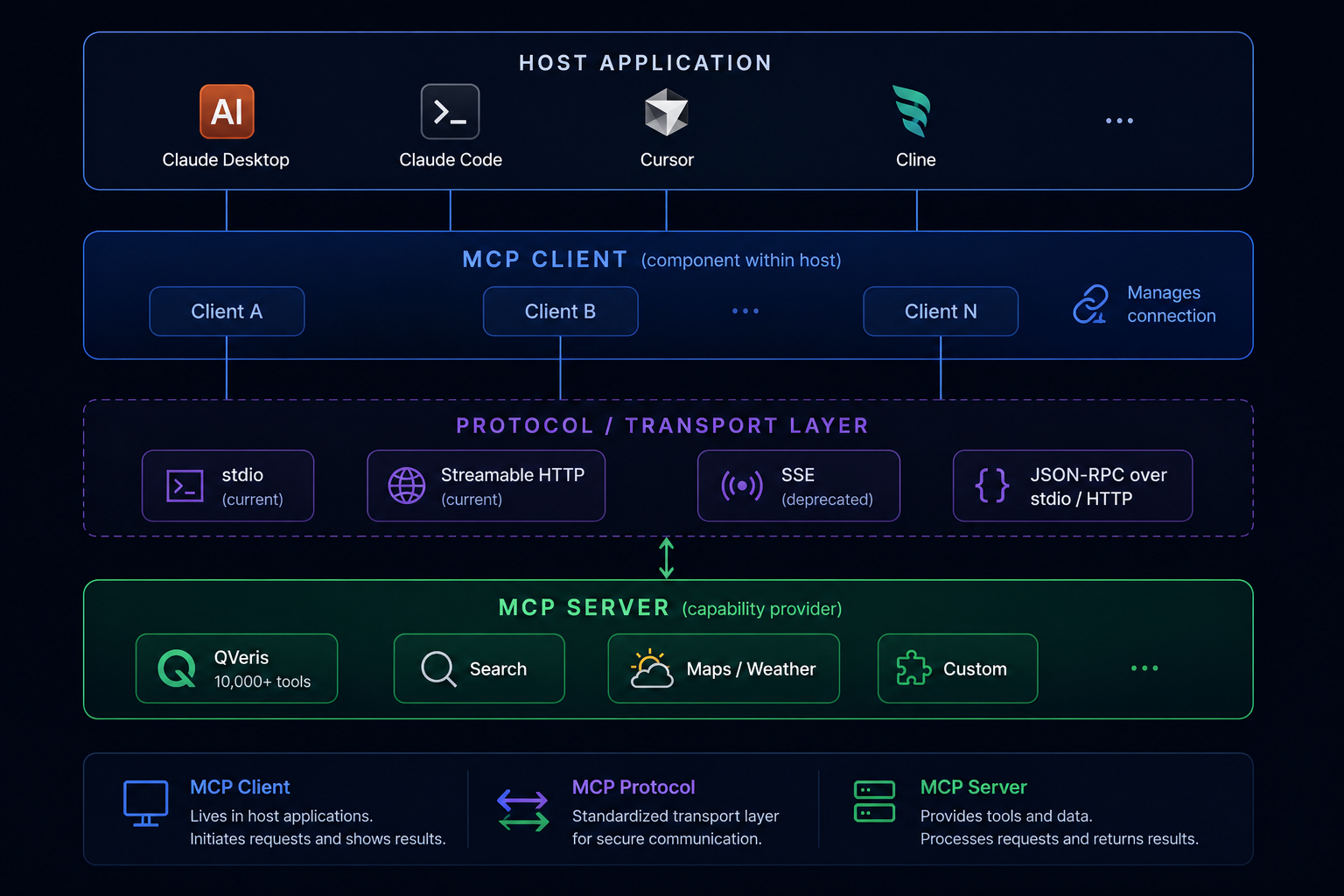
The Three Layers
- Host: The AI application you interact with — Claude Desktop, Cursor, Claude Code, Cline, or any MCP-compatible tool. The host exposes the user interface and coordinates the AI's reasoning.
- Client: A component inside the host that manages communication with MCP servers. Each client maintains a connection to one or more servers, handling protocol negotiation, tool discovery, and message exchange. A single host can run multiple clients simultaneously.
- Server: The capability provider — a service that exposes tools, resources, and prompts to clients. Servers can be public (like the QVeris MCP server with 10,000+ capabilities) or custom-built for specific integrations.
Transport Protocols
MCP uses JSON-RPC as its messaging format over two active transport options, enabling bidirectional tool calling between clients and servers:
- stdio: The most widely supported transport. Communication happens over standard input/output — ideal for local integrations and CLI-based MCP clients like Claude Code.
- Streamable HTTP: The newer standard, replacing the deprecated SSE transport. Supports bidirectional streaming over HTTP, better suited for cloud deployments and remote MCP servers.
- SSE (deprecated): Server-Sent Events was an earlier transport option. Current implementations should use Streamable HTTP instead.
Early adopters including Block, Apollo, Zed, Replit, and Sourcegraph have integrated MCP into their development environments since the protocol's announcement. This client-server architecture means their MCP clients can connect to any MCP server that implements the protocol — enabling a growing ecosystem of capability providers.
The 9 Best MCP Clients in 2026
These nine MCP clients represent the strongest options for AI developers in 2026, spanning desktop applications, CLI tools, IDE extensions, and open-source projects. Each targets a distinct workflow — choose based on where and how you work.
| Client | Type | Interface | Best For |
|---|---|---|---|
| Claude Desktop | Desktop app | GUI | General AI workflows, tool orchestration |
| Claude Code | CLI | Terminal | Scripting, CI/CD integration |
| Cursor | AI IDE | GUI | AI-first coding workflows |
| Windsurf | AI IDE | GUI | Codeium users, AI-native development |
| Cline | VS Code extension | GUI | VS Code users, agentic coding |
| Continue | IDE extension | GUI | JetBrains and VS Code users |
| Goose | Open-source agent | CLI/GUI | Open-source tooling, custom deployment |
| VS Code MCP | VS Code extension | GUI | Official MCP support in VS Code |
| OpenCode | Open-source IDE | GUI | Open-source-first developers |
1. Claude Desktop
Claude Desktop is Anthropic's official desktop application with native MCP support. It provides an AI-first interface for conversation, file exploration, and tool calling orchestration. As the originating application for the Model Context Protocol, Claude Desktop has the deepest MCP integration — including 2026's new Tool Search feature with lazy-loading for discovering MCP capabilities dynamically.
Works with QVeris: Yes — connect the QVeris MCP server to Claude Desktop to add 10,000+ tools for research, data retrieval, maps, weather, and more directly into your desktop AI workflow. See setup guide →
2. Claude Code
Claude Code is Anthropic's CLI tool for AI-augmented development directly in your terminal. It uses MCP over stdio, making it ideal for scripting, automated workflows, and CI/CD integration. Claude Code's MCP support enables it to connect to any MCP server while you work entirely from the command line — with native tool calling and capability routing built in.
Works with QVeris: Yes — configure the QVeris MCP server via stdio to give Claude Code instant access to 10,000+ tools for API calls, data fetching, and workflow automation without leaving your terminal.
3. Cursor
Cursor is an AI-first IDE built around large language model integration. MCP support lets Cursor connect to external capability providers beyond its built-in tools. Its codebase-aware AI features combined with MCP make it a strong choice for developers who want IDE comfort with extended tool access — and the flexibility of custom capability routing to third-party tools.
Works with QVeris: Yes — add QVeris MCP server to Cursor and every project gains instant access to 10,000+ tools without project-level configuration. See setup guide →
4. Windsurf
Windsurf is Codeium's AI coding assistant, positioned as a "copilot++" IDE. It integrates MCP to connect to external tool providers, complementing Codeium's existing code completion capabilities with broader tool access through the protocol — enabling dynamic capability routing across multiple tool sources.
Works with QVeris: Yes — connect the QVeris MCP server to Windsurf for extended research and data retrieval capabilities beyond code completion, adding 10,000+ tools to your AI-native coding workflow.
5. Cline
Cline is an autonomous AI coding agent that runs inside VS Code as an extension. It uses MCP to connect to external tools, enabling agentic workflows where the AI can research, plan, execute, and verify code changes with tool calling beyond VS Code's native offerings — with dynamic capability routing to external providers.
Works with QVeris: Yes — adding the QVeris MCP server to Cline brings research and data retrieval capabilities into Cline's agentic coding workflows, extending what your autonomous agent can accomplish without manual tool integration.
6. Continue
Continue is an open-source IDE extension supporting both VS Code and JetBrains IDEs. It provides an MCP-native interface for connecting AI assistants to external tools, with a focus on developer configurability and open-source tooling — and native capability routing to any MCP-compatible server.
Works with QVeris: Yes — JetBrains users (IntelliJ, PyCharm, WebStorm) can connect the QVeris MCP server to Continue for extended MCP capability access across the full QVeris tool network without leaving their preferred IDE.
7. Goose
Goose is an open-source AI agent framework developed by Highlight (formerly Block). It emphasizes extensibility and local execution, making it popular for developers who want full control over their AI agent infrastructure with MCP as the primary capability extension mechanism — including native capability routing to external MCP servers.
Works with QVeris: Yes — teams deploying Goose as their agent runtime can connect the QVeris MCP server for access to the full QVeris capability network, adding 10,000+ tools to their self-hosted AI agent infrastructure.
8. VS Code MCP
The official MCP extension for Visual Studio Code, published by the Model Context Protocol organization. It provides first-class MCP support directly in VS Code, allowing developers to configure MCP servers and connect any compatible capability provider without switching tools — with native tool calling for every configured server.
Works with QVeris: Yes — configure the QVeris MCP server via the official MCP extension settings panel in VS Code to add 10,000+ tools to your VS Code workflow with one configuration.
9. OpenCode
OpenCode is an open-source AI IDE with native MCP support, built by the opencode-ai community. It targets developers who prefer open-source tooling and want MCP compatibility without proprietary dependencies. QVeris provides an OpenCode setup guide →
Works with QVeris: Yes — QVeris provides native MCP integration for OpenCode, making it the most open-source-native path to accessing the full QVeris capability network without any proprietary tooling requirements.
How to Build Your Own MCP Client
If the existing MCP clients don't fit your workflow, you can build your own using the official MCP SDK. Learning how to build an MCP client from scratch helps you understand the protocol and customize tool calling and capability routing for specific use cases.
The MCP client SDK handles the protocol complexity — connection management, JSON-RPC message framing, tool discovery, and resource streaming. You focus on integrating the client into your application and defining how to present tools to your users.
// MCP Client SDK example — minimal client connecting to a server
// Source: MCP SDK documentation, modelcontextprotocol.io

import { Client } from "@modelcontextprotocol/sdk/client";
import { StdioClientTransport } from "@modelcontextprotocol/sdk/client/stdio";

async function createMCPClient() {
  // Configure stdio transport — connects via stdin/stdout to MCP server
  const transport = new StdioClientTransport({
    command: "npx",
    args: ["-y", "@qverisai/mcp-server"],
    env: {
      QVERIS_API_KEY: process.env.QVERIS_API_KEY,
    },
  });

  // Initialize the MCP client
  const client = new Client({
    name: "my-mcp-client",
    version: "1.0.0",
  });

  // Connect and discover available tools from the server
  await client.connect(transport);
  const tools = await client.listTools();

  console.log(`Connected. Available tools: ${tools.length}`);
  // tools[0].name, tools[0].description, tools[0].inputSchema

  // Call a tool
  const result = await client.callTool({
    name: "web_search",
    arguments: { query: "MCP protocol status 2026" },
  });

  return result;
}

createMCPClient().catch(console.error);
The SDK also supports Streamable HTTP transport for connecting to remote MCP servers:
// Streamable HTTP transport for remote MCP server connections
import { Client } from "@modelcontextprotocol/sdk/client";
import { HTTPClientTransport } from "@modelcontextprotocol/sdk/client/http";

const transport = new HTTPClientTransport({
  url: "https://mcp.qveris.ai/stream",
  headers: { Authorization: `Bearer ${process.env.QVERIS_API_KEY}` },
});

const client = new Client({ name: "remote-client", version: "1.0.0" });
await client.connect(transport);
Building your own MCP client makes sense when you need a custom AI application — a chatbot for internal documentation, an AI assistant embedded in a product, or a specialized workflow tool — with MCP tool access. The SDK abstracts the protocol complexity so you focus on the application logic rather than implementing JSON-RPC framing.
Extending Any MCP Client with 10,000+ Capabilities
Every MCP client listed above can connect to the QVeris MCP server, gaining instant access to a unified capability routing network spanning search, maps, weather, document stores, financial data, blockchain, and healthcare systems — without custom integrations per capability. This is the power of MCP: the same tool calling interface works across every client, so your choice of client determines your workflow, not your capabilities.
Connect QVeris to Claude Desktop
// Claude Desktop MCP config — ~/.claude/Desktop/mcp.json
// Add QVeris MCP server to Claude Desktop's configuration

{
  "mcpServers": {
    "qveris": {
      "command": "npx",
      "args": ["-y", "@qverisai/mcp-server"],
      "env": {
        "QVERIS_API_KEY": "YOUR_API_KEY"
      }
    }
  }
}
Connect QVeris to Cursor
// Cursor MCP settings — .cursor/mcp.json (project root or ~/.cursor/)
// Works across Cursor projects — configure once, use everywhere

{
  "mcpServers": {
    "qveris": {
      "command": "npx",
      "args": ["-y", "@qverisai/mcp-server"],
      "env": {
        "QVERIS_API_KEY": "YOUR_API_KEY"
      }
    }
  }
}
The same configuration pattern works across all MCP clients: install the QVeris MCP server package via npx, provide your API key via environment variable, and the client discovers and connects to all 10,000+ capabilities automatically. Through QVeris's unified capability routing, every tool call your AI assistant makes — whether for search, maps, or financial data — routes through one server configuration. QVeris handles schema translation, provider selection, and error normalization automatically, so your MCP client gets consistent results regardless of which underlying tool is called.
QVeris also maintains a global MCP registry that indexes 10,000+ tools across multiple providers. When you connect your MCP client to QVeris, the capability routing engine queries this registry to find the optimal tool for each request — and handles the provider-specific translation so your client code stays clean.
This is the key insight: the choice of MCP client is about your preferred interface (desktop GUI, CLI, IDE extension), while the QVeris MCP server handles the capability routing that determines what your client can actually do. QVeris's capability routing automatically selects the optimal tool provider based on schema complexity, latency requirements, and cost constraints — so you get the best tool for each task without manual routing logic. Pick the client that fits how you work, then extend it with QVeris for unlimited tool access.
Choosing the Right MCP Client: Decision Framework
The best MCP client depends on your workflow, preferred interface, and deployment context. Use this framework to match your situation to the right tool.
| If you need... | Choose | Why |
|---|---|---|
| General AI workflows with strong reasoning | Claude Desktop | Native Anthropic integration, Tool Search lazy-loading (2026), deep MCP support |
| CLI scripting and CI/CD integration | Claude Code | Terminal-native, stdio transport, scriptable, version-controllable |
| AI-first coding with IDE comfort | Cursor | Built for AI-assisted development, MCP integration, AI-native UX |
| VS Code extension workflow | Cline or VS Code MCP | Cline for agentic coding; VS Code MCP extension for lightweight MCP support |
| JetBrains IDE (IntelliJ, PyCharm) | Continue | Best MCP support for JetBrains IDEs |
| Open-source tooling, self-hosted | Goose or OpenCode | Fully open-source, local execution, self-controlled infrastructure |
| Maximum capability access regardless of client | Any + QVeris | QVeris MCP server works with all clients above — capability breadth is independent of client choice |
If you're building a custom AI application, the MCP Client SDK gives you full control — implement your own client, connect it to QVeris for the full capability network, and focus on your application logic.
Extend Any MCP Client with 10,000+ Capabilities
QVeris provides an MCP server that works with Claude Desktop, Cursor, Cline, Continue, Claude Code, Goose, OpenCode, and any other MCP-compatible client — adding 10,000+ tools to your AI assistant through unified capability routing across search, maps, weather, docs, finance, blockchain, and healthcare.
View Docs →